Native Mac app

Backrooms Builder.

Build, light, and record your own Backrooms level without learning Blender's building tools.
$3.00 one-time purchase Apple-silicon Mac macOS 14+
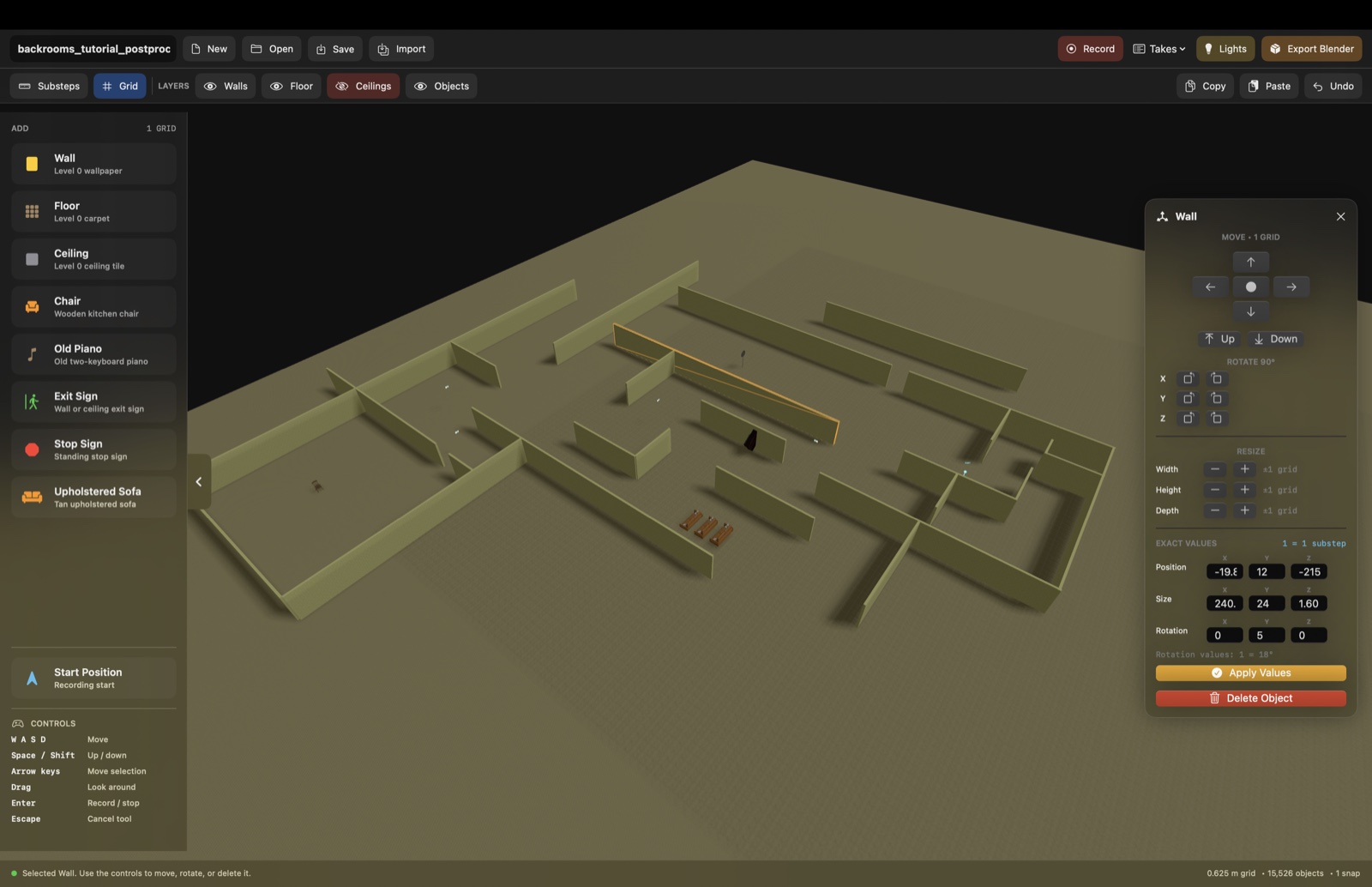
Backrooms Builder showing a large grid-aligned maze with the wall editing controls open

Place pieces on the grid, then move, rotate, or resize them.
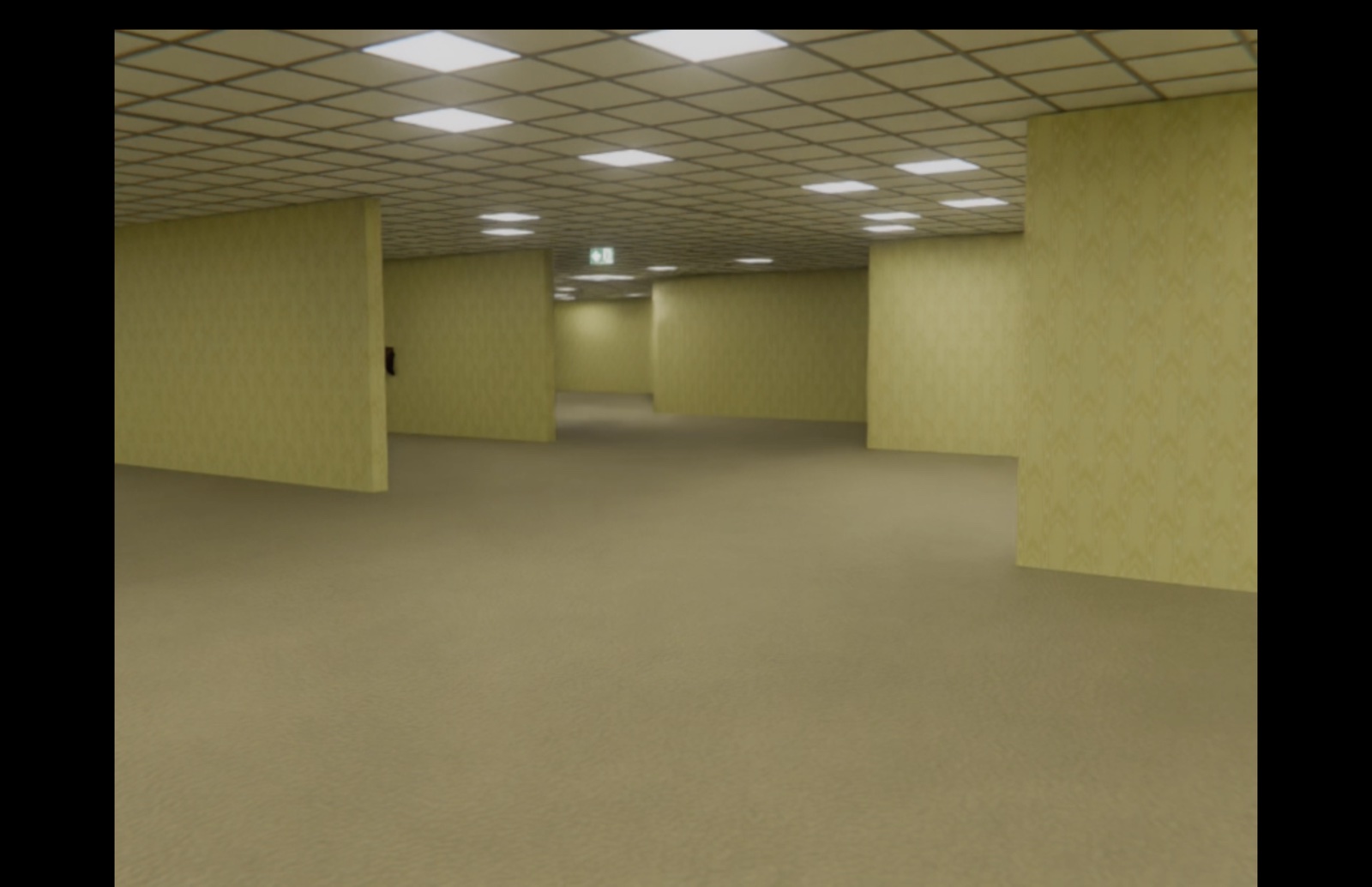
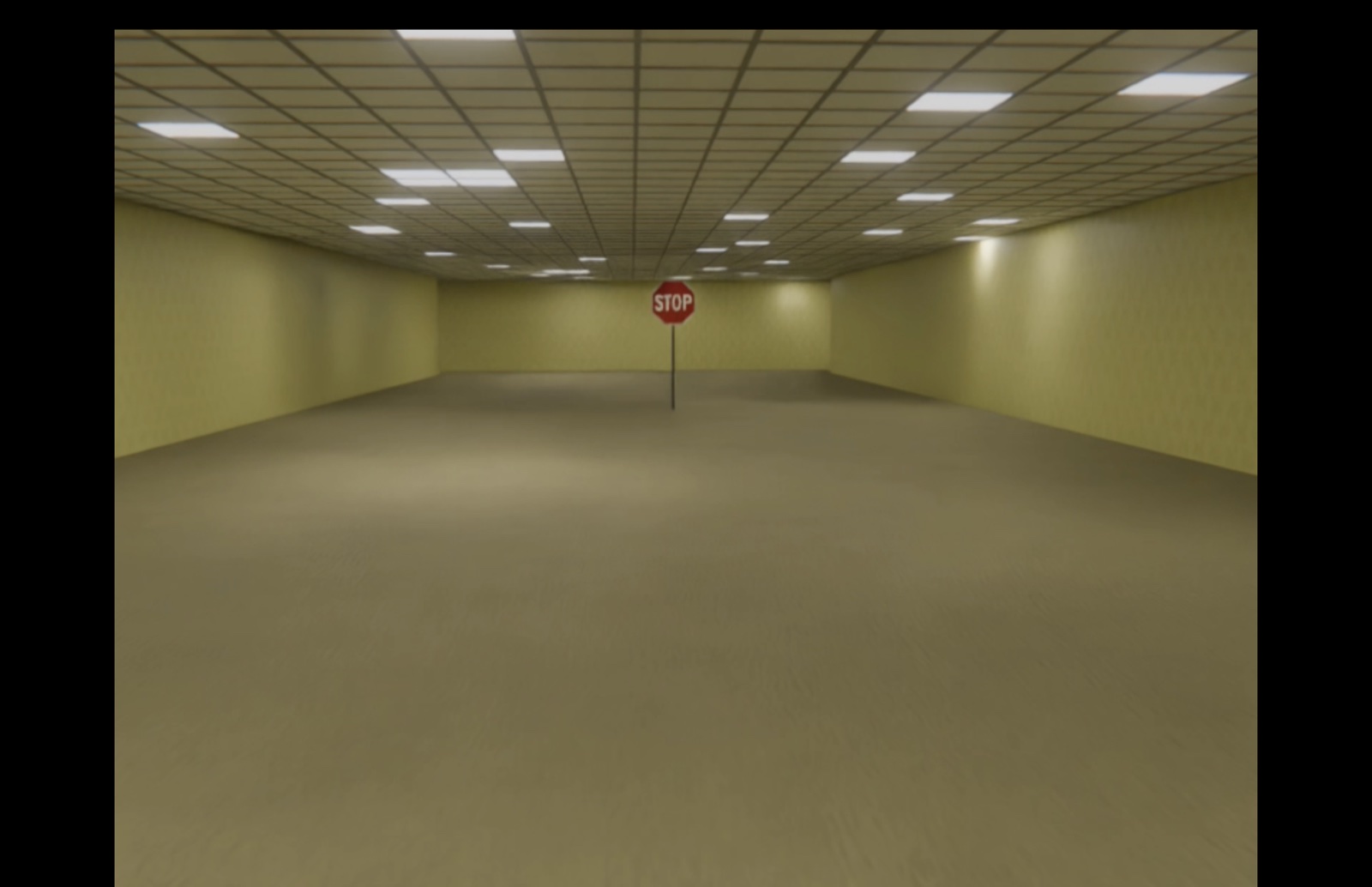
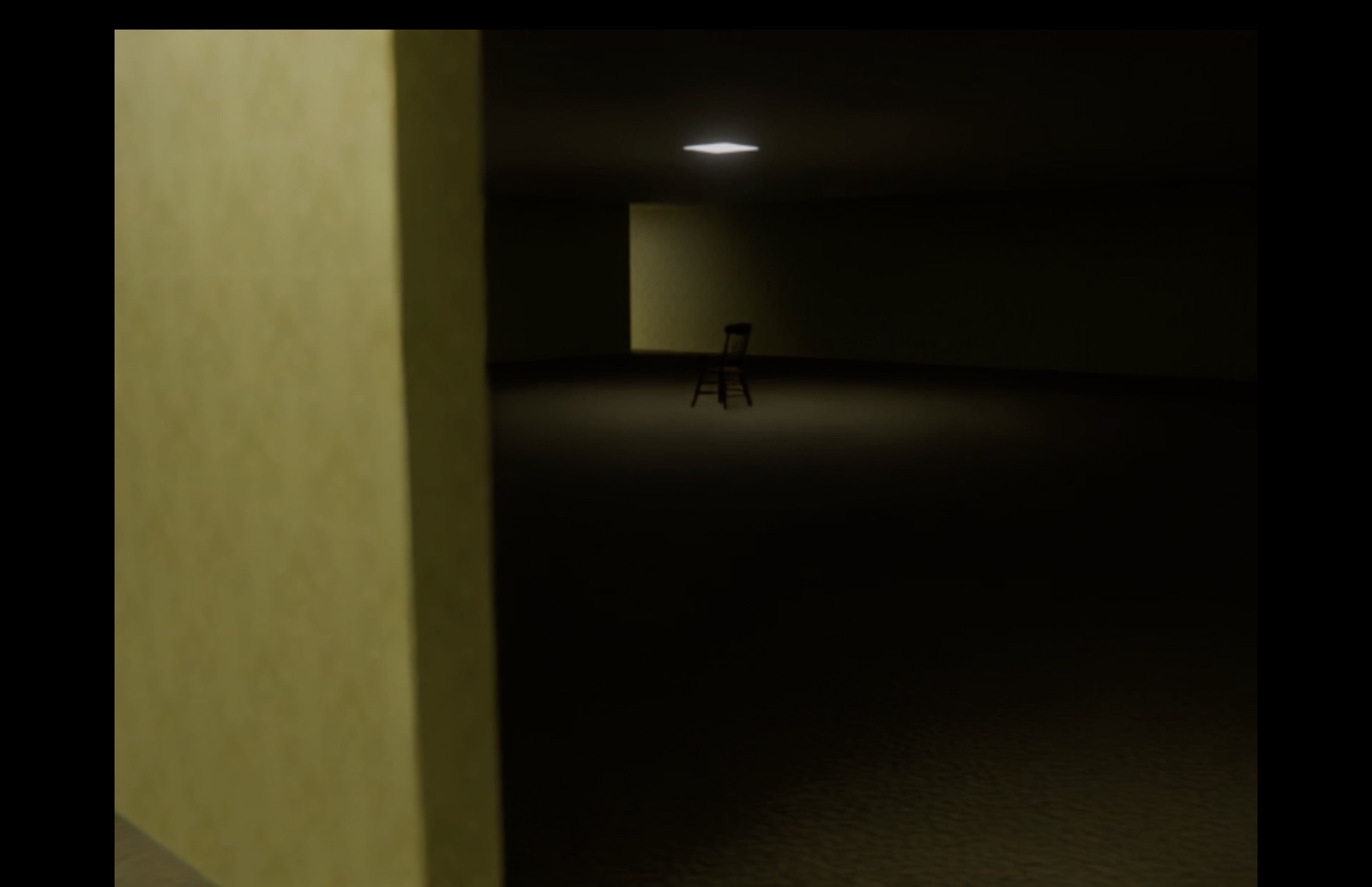
Made with Backrooms Builder

What your level could look like.

1 · Build

Click pieces into place.

  • Place walls, floors, and ceilings on a snapping grid.
  • Move, rotate, copy, or resize whole pieces.
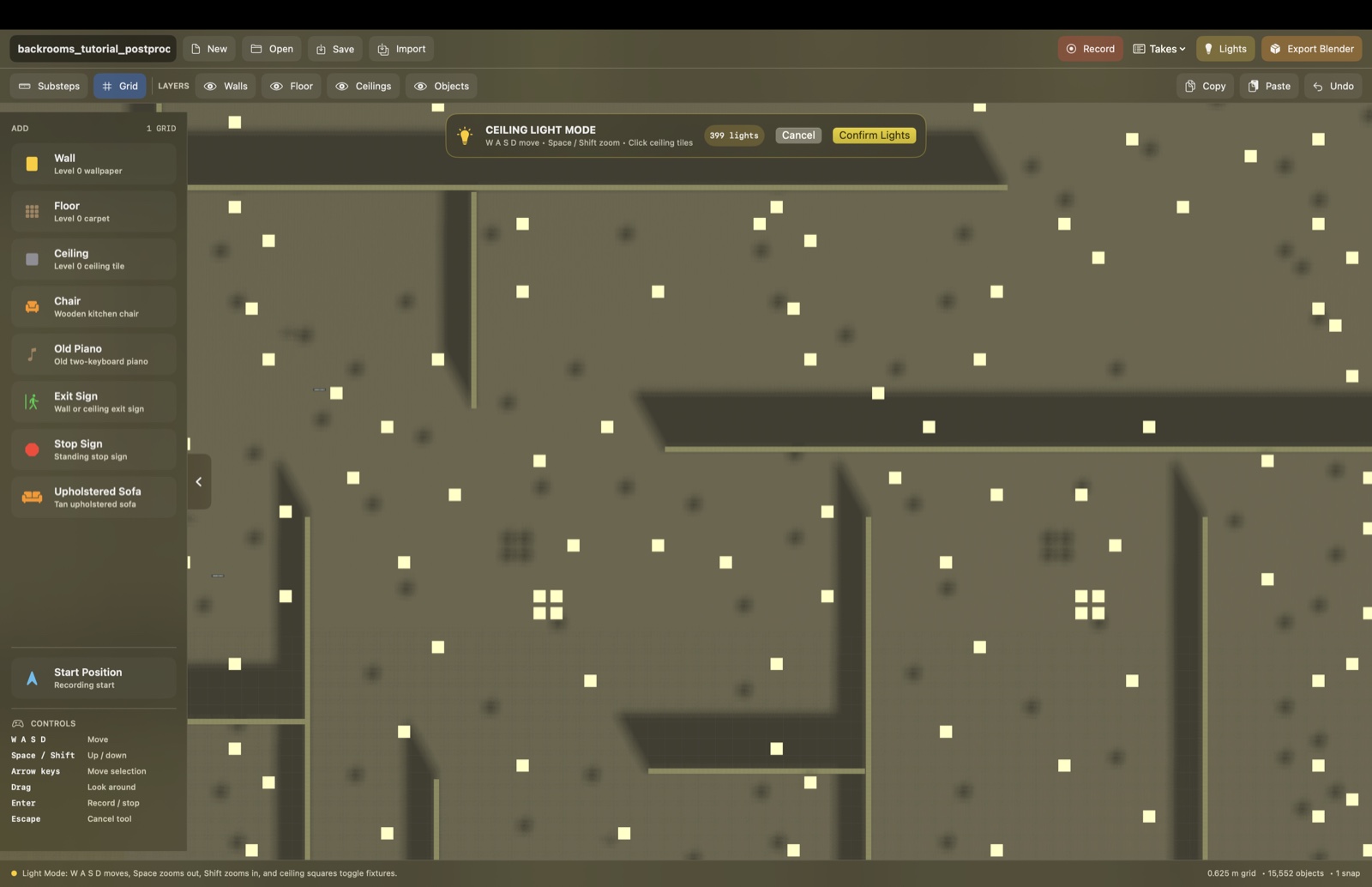
  • Place lights from a top-down view.
2 · Record

Walk through your maze.

  • Set your starting position.
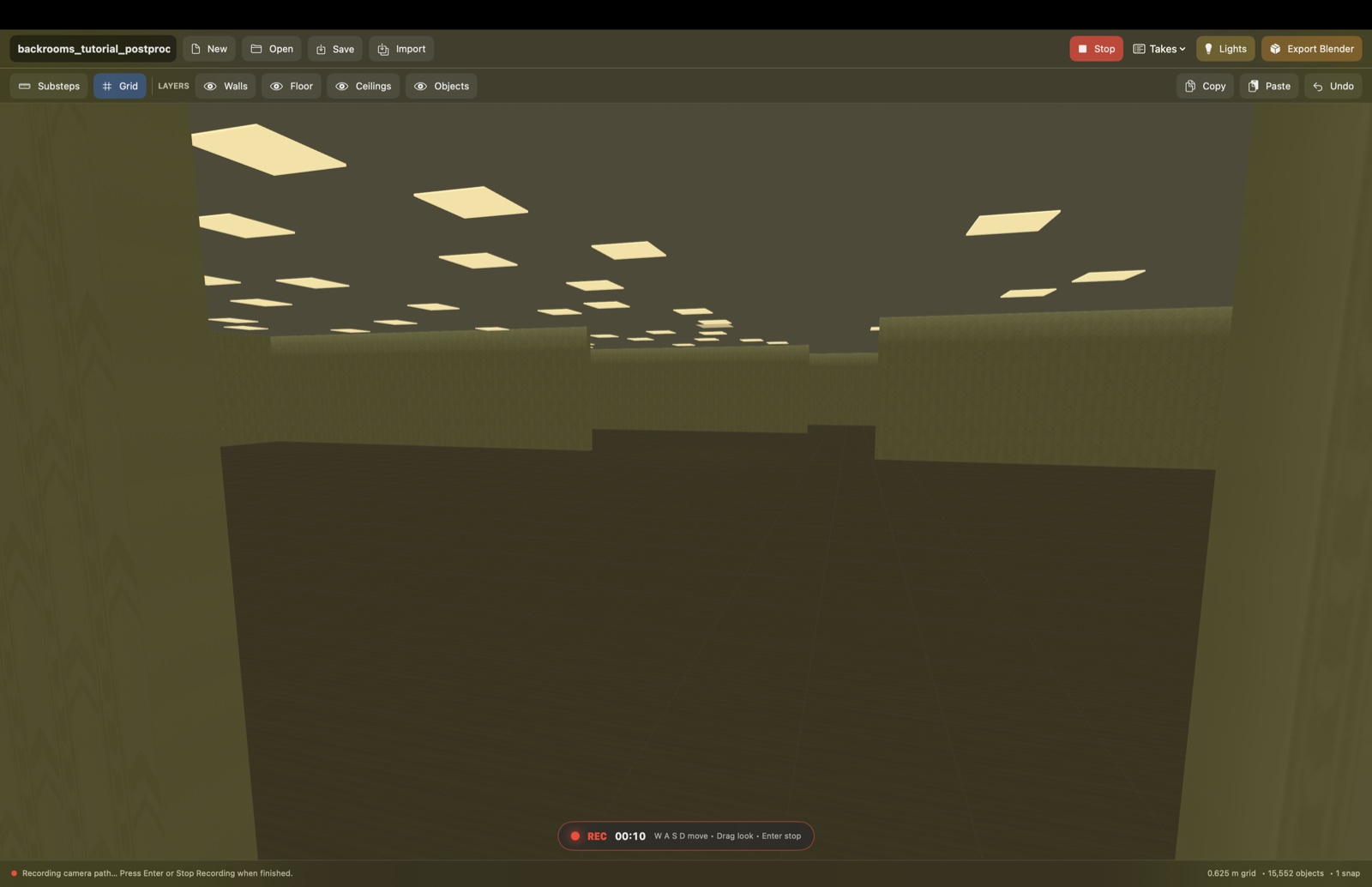
  • Press Record and move in first person.
  • Save multiple takes.
3 · Finish

Turn it into a short film.

  • Export the full layout and camera recording to Blender.
  • Use the included AI helper to finish it.
See it in action

Build. Light. Record.

Make the maze, place its lights, and record a first-person camera path in one simple app.
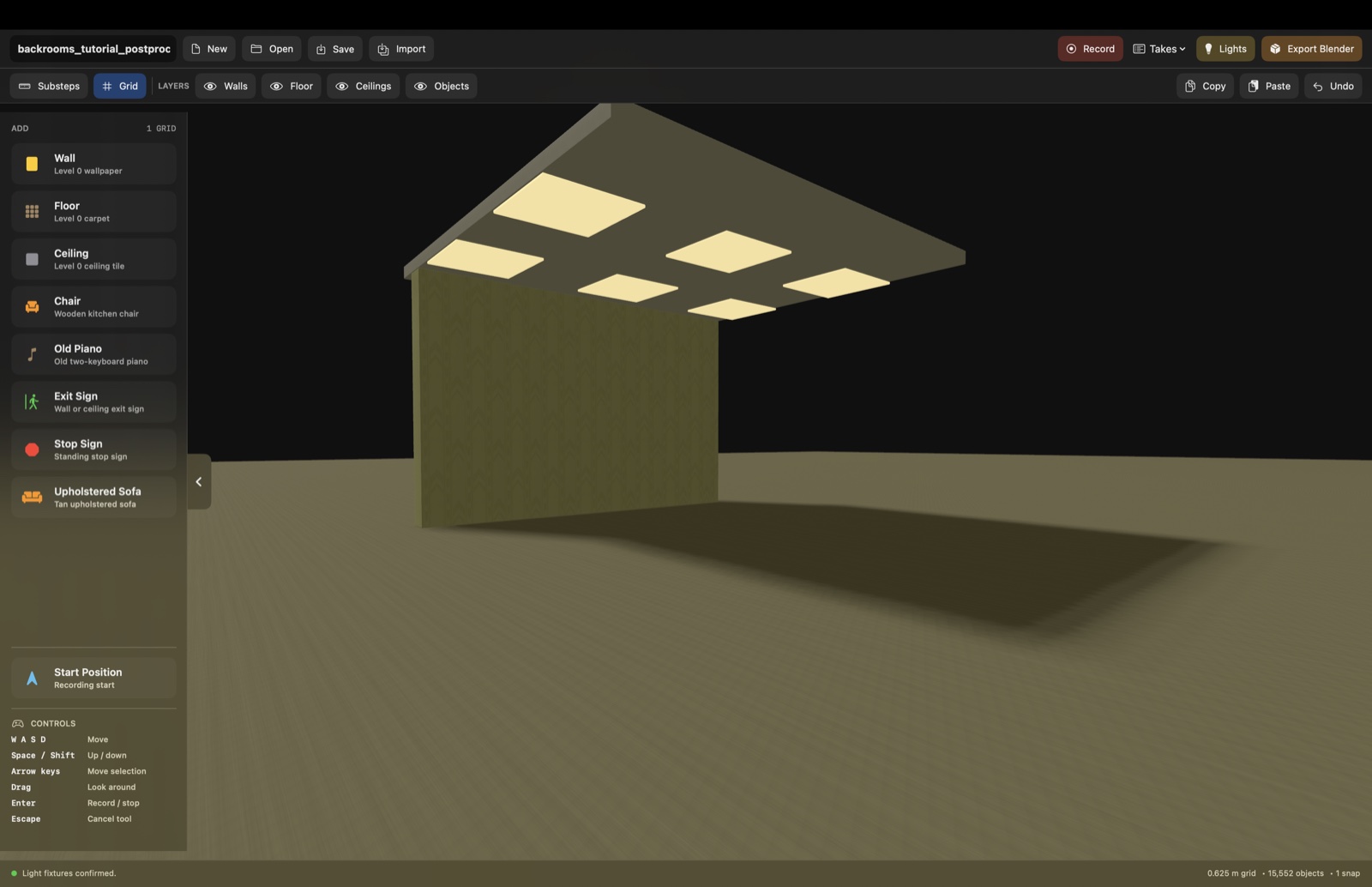
Backrooms Builder showing ceiling lights placed above a wall and floor
Place complete rooms Walls, floors, and ceilings stay aligned.
Top-down ceiling Light Mode with selected fixtures and visible walls
Choose every ceiling light See the maze while placing each fixture.
First-person recording mode inside a Backrooms Builder level
Record in first person Walk through the level and save the camera motion.
Requirements

What you need.

Apple silicon only macOS 14 Sonoma or newer Blender in `/Applications` for Blender export
The current build is not notarized, so its first launch uses the manual Open step below.
First launch

Control-click, then Open.

  1. Drag Backrooms Builder.app into Applications.
  2. Control-click the app and choose Open.
  3. Choose Open again in the confirmation window.
Free updates

Already bought it?

Return with the same browser to download the newest version at no extra charge.

Current release

Version 0.2.1 · build 3

Includes the latest export and height fixes.

You can also choose “Check for Backrooms Builder Updates” from the app’s Help menu.